Zabbix triggers from windows task scheduler

Let's say you have a scheduled task that you need to make sure runs each time it's meant to. Windows Task Scheduler has the ability to log it's tasks and whether they runs successfully or not. As Zabbix supports reading windows event logs I decided to try setting up a trigger for when a certain task fails to run on one of the machines i monitor.
Here's the basic idea:
- The Windows Task Scheduler logs its task events to the windows event log.
- Zabbix agent active reads the event logs.
- When the task finishes, the event log logs the exit code.
- We read the exit code and determine from it whether the task was successful or not.
So in this case, we can configure Zabbix to create a trigger that activates when the exit code is a non-zero number, and this way we know whether the last execution was successful or not.
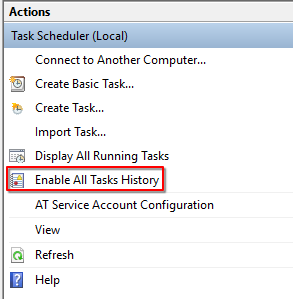
First we need to make sure Windows Task Scheduler is actually logging its task events, as this is disabled by default. We simply click enable here in the main task scheduler window:
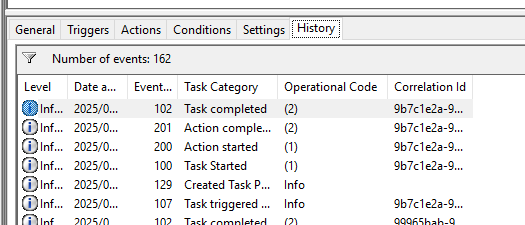
Once the task runs again the history tab under the task information will be populated with events pulled from the Windows Event Log:
Now we can set up Zabbix to parse these logs for us. Let's set up a template to keep these items and triggers in, that we will apply to a host later
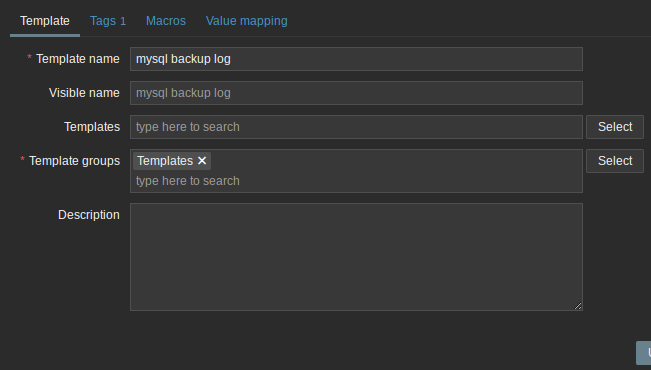
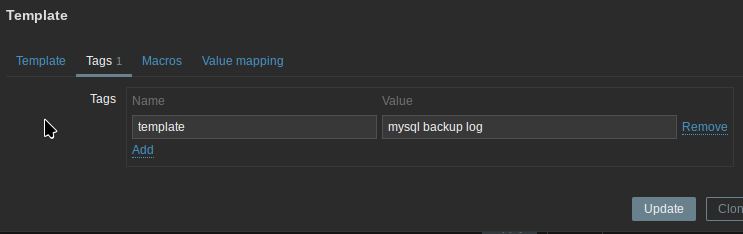
Inside this template we add one Item, this will pull the logs and filter them for the lines we want.
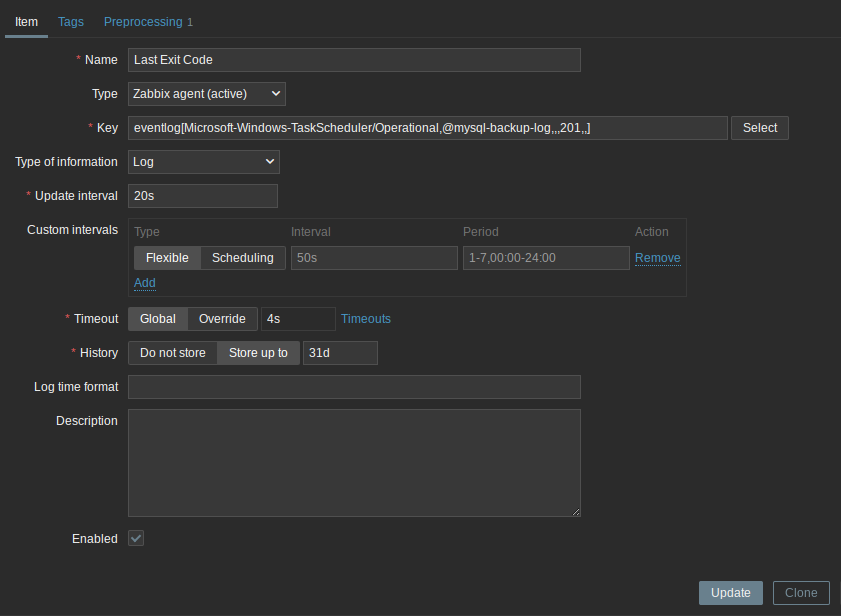
This uses the Zabbix agent(active) type and the Log type of information.
The key used is the eventlog key, and is constructed as follows (from zabbix documentation):
eventlog[name,<regexp>,<severity>,<source>,<eventid>,<maxlines>,<mode>]Return value: Log.
Parameters:
- name - the name of the event log;
- regexp - a regular expression describing the required pattern (case sensitive);
- severity - a regular expression describing severity (case insensitive). This parameter accepts a regular expression based on the following values: "Information", "Warning", "Error", "Critical", "Verbose" (running on Windows Vista or newer).
- source - a regular expression describing the source identifier (case insensitive);
- eventid - a regular expression describing the event identifier(s) (case sensitive);
- maxlines - the maximum number of new lines per second the agent will send to Zabbix server or proxy. This parameter overrides the value of 'MaxLinesPerSecond' in zabbix_agentd.conf.
- mode - possible values: all (default) or skip - skip the processing of older data (affects only newly created items).
For this item, we will use 3 values:
name - In this case, as we are monitoring the Task Scheduler logs we want Microsoft-Windows-TaskScheduler/Operational
regexp - In my screenshot, the regular expression used is a global one, denoted by the @mysql-backup-log and is set up to equal \\mysqld backup as you can see below.
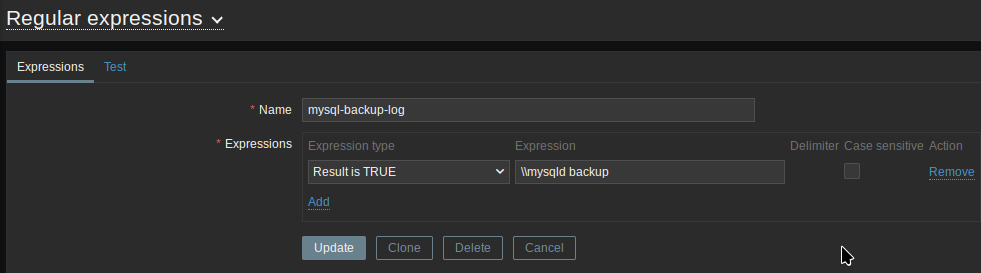
This matches with the log lines for this task, which always include the name of the task like this:
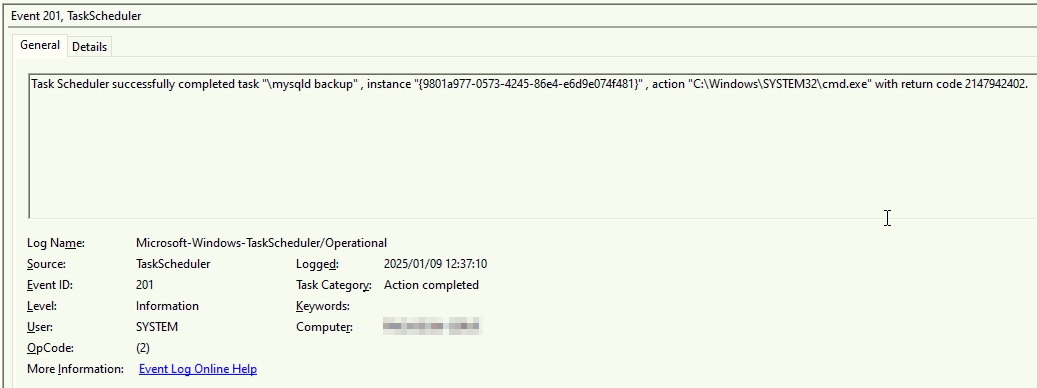
eventid - We use event id 201 here as that is the id of the event that logs the task's exit code as seen above.
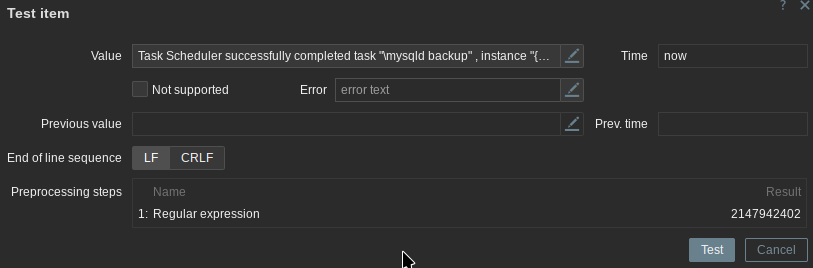
In the Preprocessing tab for this item, we will instruct zabbix to store only the code itself from the log line:
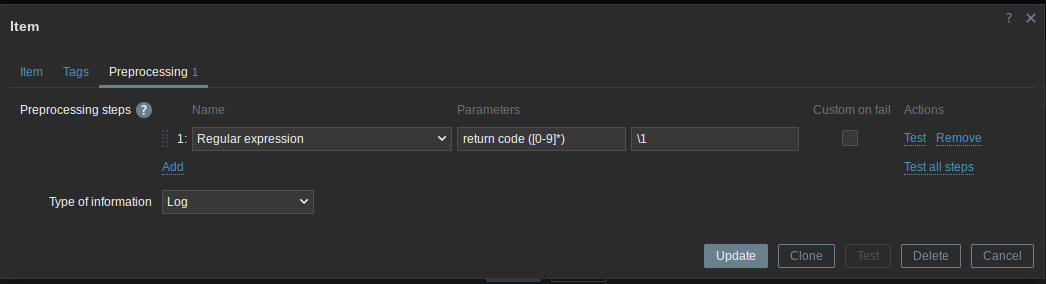
This is done using another regular expression that looks for return code followed by any number of digits, and returns the digits. Here you can see it in action parsing the string from the Task Scheduler screenshot above.
Now that the item has been created, we can make the Trigger. The trigger is what lets us actually detect for and act upon an event.
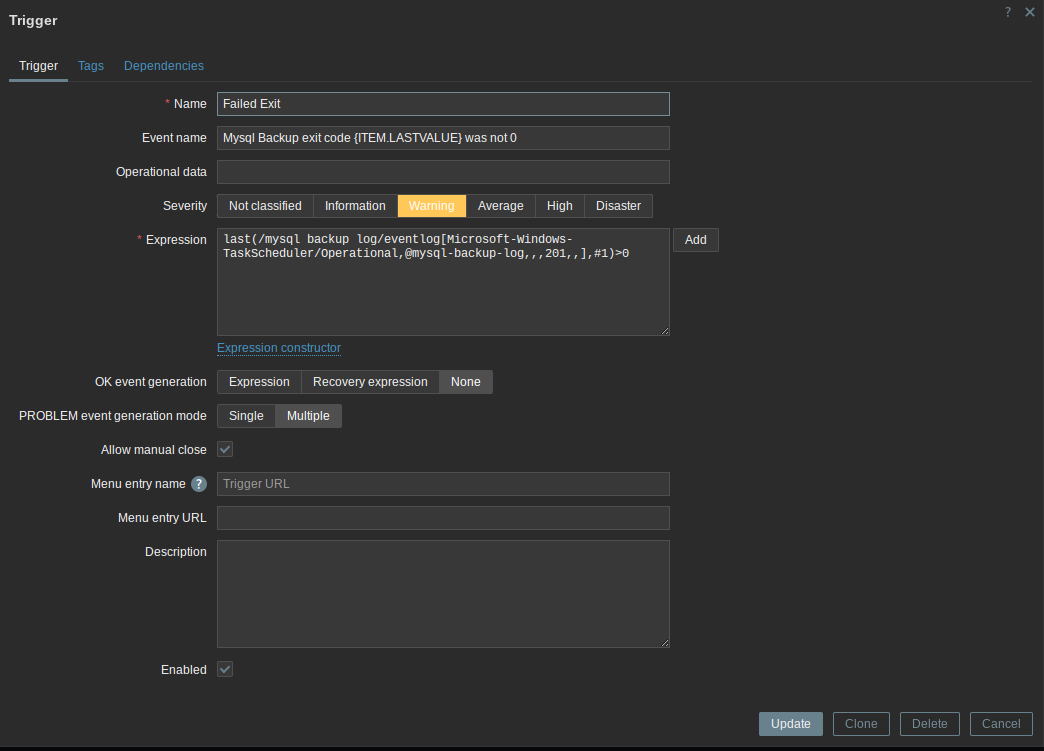
In this trigger, the most important field is the Expression. This is the logic that the trigger acts upon. In the image you can see the already created logic but Zabbix lets you create the logic through an "Expression constructor"
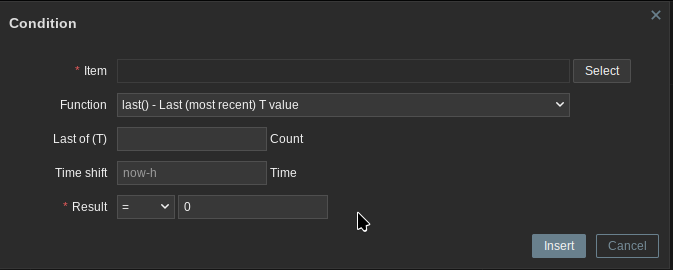
Here we can set the item the trigger acts upon and what the expression will do with the data retrieved by the item. We will choose our item created earlier inside the same template, then choose last() as our function to choose the last value recorded by the item, and then check if the value is greater than 0
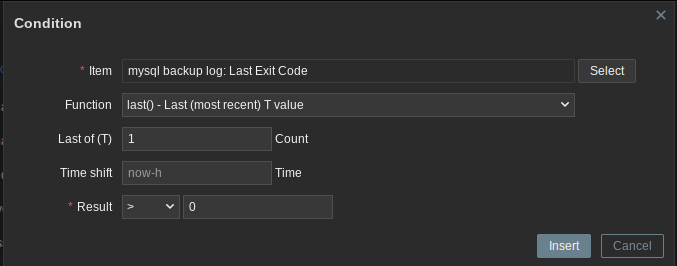
With it set up like this, the trigger will be enabled any time the exit code for the task scheduler task is greater than 0. Since 0 is the success code, this means it triggers when the task fails.
in the Event Name field, we can display the actual value that the exit code was by including the macro (zabbix for variable) {ITEM.LASTVALUE}
This pulls the value from the item used for the Expression logic, i.e. the one we selected in the expression constructor.
In this case we want the problem to be manually closed by acknowledging as if it failed once it will likely fail each time following that, as we choose None as our OK event generation and tick "Allow manual close"
After assigning this template to a host, with a quick test of an intentionally broken backup script to force an error we can see a problem on the dashboard showing that we need to check it!

Hope you found this writeup helpful :) Feel free to leave a comment down below with your thoughts!
C